 Optimizely


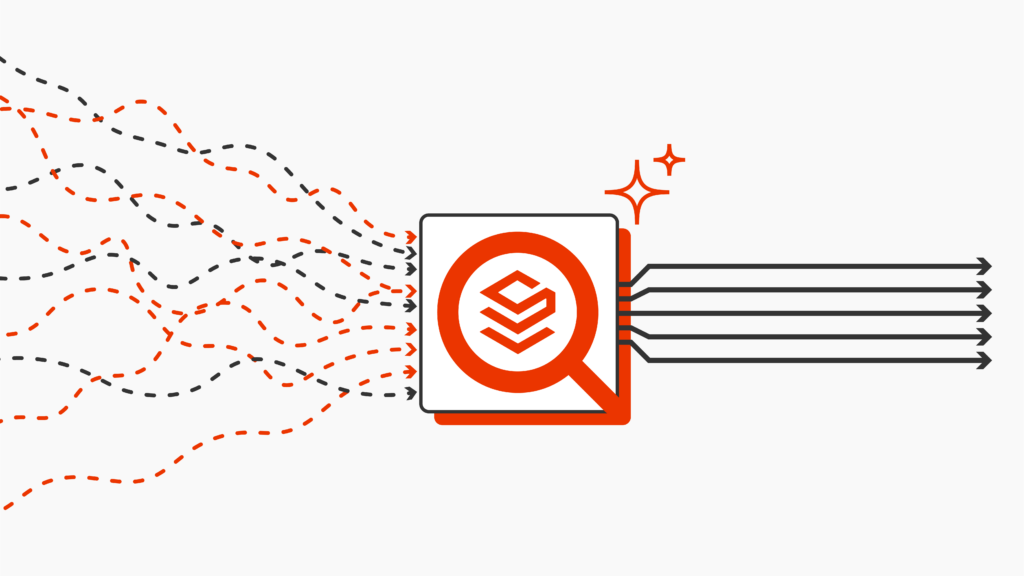
Integrating Solr with Drupal can significantly enhance the search capabilities of your website, but historically there hasn’t been an easy or cost-effective way to do it. SearchStax Cloud Serverless fills that gap by offering on-demand Solr and removing the hassle of hosting, infrastructure, and maintenance.
With SearchStax Cloud Serverless, you can now leverage the power of Solr for your Drupal search in no time – and you don’t have to worry about dealing with Solr infrastructure overhead, either.
In this tutorial, we’ll walk you through the process of setting up Solr on Drupal using SearchStax Cloud Serverless. We will sign up for a SearchStax Cloud Serverless free trial, use the SearchStax Search API module to index data, and configure a Drupal search page using views.
"...SearchStax Managed Search provides an option that enables developers to deploy and integrate Solr quickly with their website or application at a low starting cost..."
How to Get Started
Prerequisites
Before proceeding with this tutorial, make sure you have the following:
- A Drupal 9 or 10 website up and running
- Administrative access to your Drupal site
- Basic understanding of Drupal’s module installation and configuration process
- Search API and Search API Solr modules installed
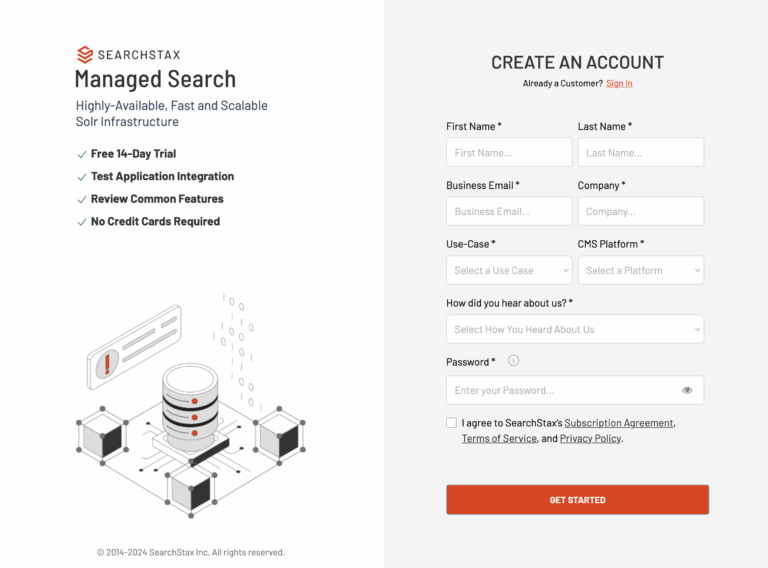
Step 1: Sign Up for a SearchStax Managed Search Free Trial
To get started, head over to SearchStax and sign up for a free trial. After signing up, you’ll gain access to the SearchStax Cloud Serverless dashboard, where you can create and manage your Solr indexes.
Step 2: Create a Solr Deployment on SearchStax Managed Search
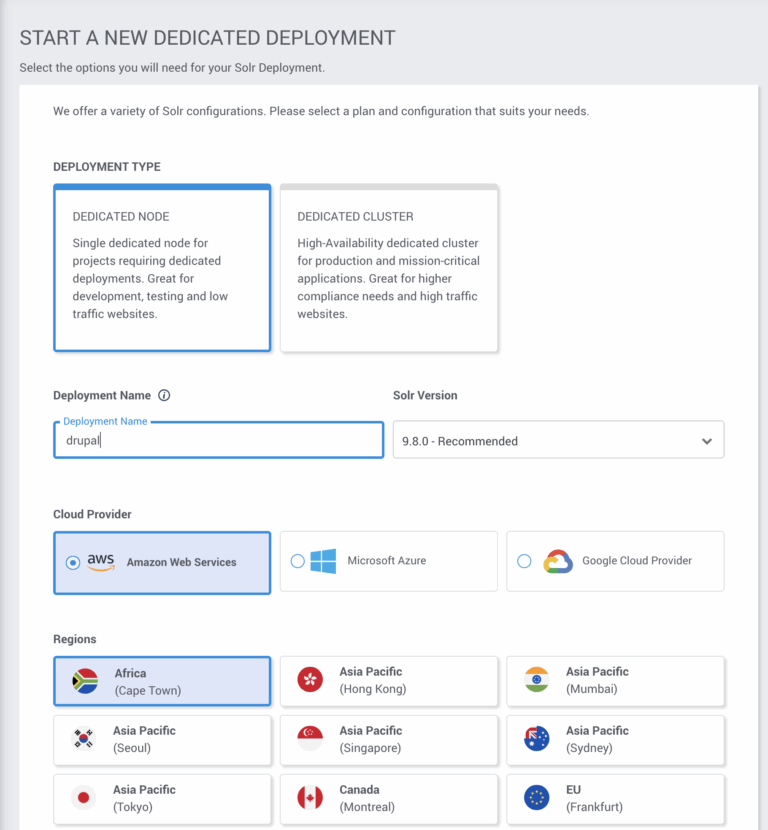
Give your index a Name, Region, and Solr version. Select a Plan, as indicated below:
Your Index is now provisioning with the selected configuration. Please wait a few minutes for the Index.
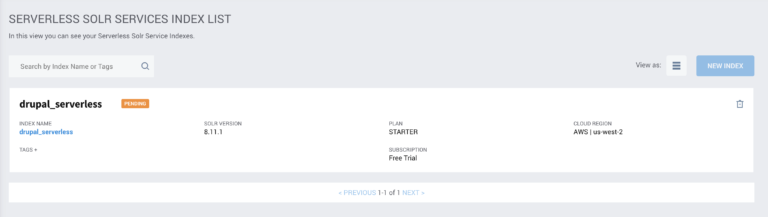
Once the server is in an active state, navigate into the Index details page by clicking on the index name. Make note of your select endpoint and Read/Write token. You will need both when connecting your Index to Drupal.
That’s it! Your Solr Index is up and running. We can now index your Drupal content.
Step 3: Install the SearchStax Search API Module on Drupal
Now that your Solr index is ready, you can proceed to integrate it with your Drupal site.
First, ensure you have the latest versions of the Search API and Search API Solr modules installed.
Then download and install the SearchStax Search API module from the Drupal module page. This module extends the functionality of the Search API module to support SearchStax Cloud Serverless.
Step 4: Configure Search API Server with SearchStax Cloud Serverless
Navigate to the Search API configuration page in your Drupal site’s admin panel.
Administration > Configuration > Search and Metadata > Search API
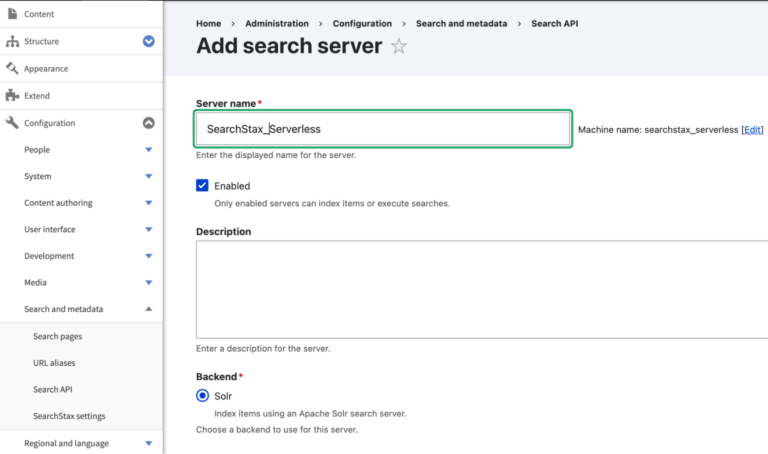
Click Add Server. Give it a name and select Solr as the backend.
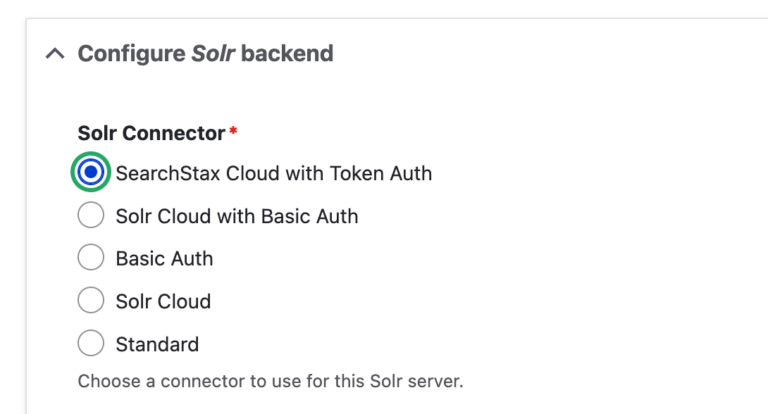
Select “SearchStax Cloud with Token Auth“ as the Solr backend in the Configure Solr Backend section.
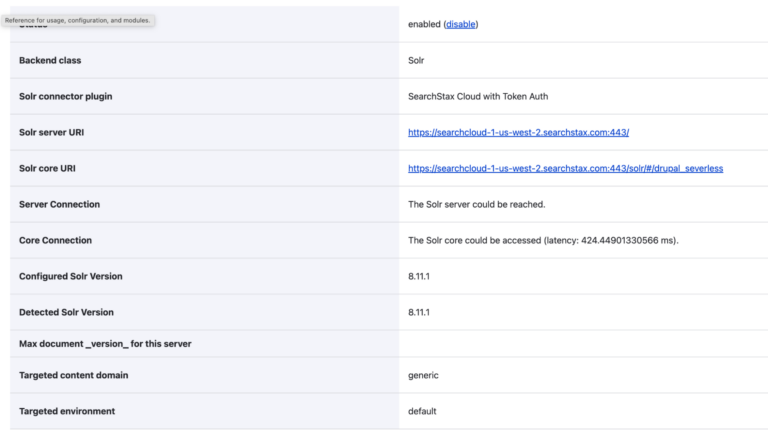
Paste the “select endpoint” from the SearchStax Cloud Serverless dashboard into the Endpoint field. Paste the “Read & Write” token in the Read & write token key field. That’s it! Your server is connected. You’ll be redirected to your server overview page as follows:
Step 5: Configure Search API Index
Once the server is configured, create a new search index using the Search API configuration page. Make sure to assign it to the server you just created.
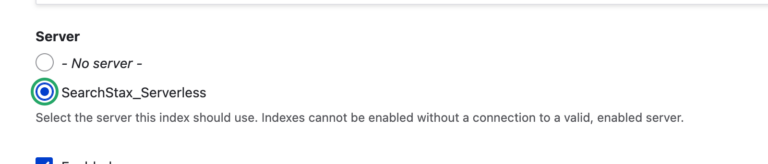
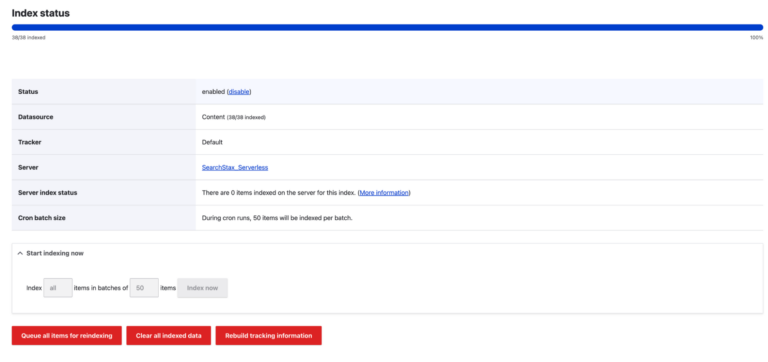
Select the content types you want to index, as well as the fields you want to be searchable. Save your configuration and index your content.
Step 6: Create a Search Page using a Drupal View
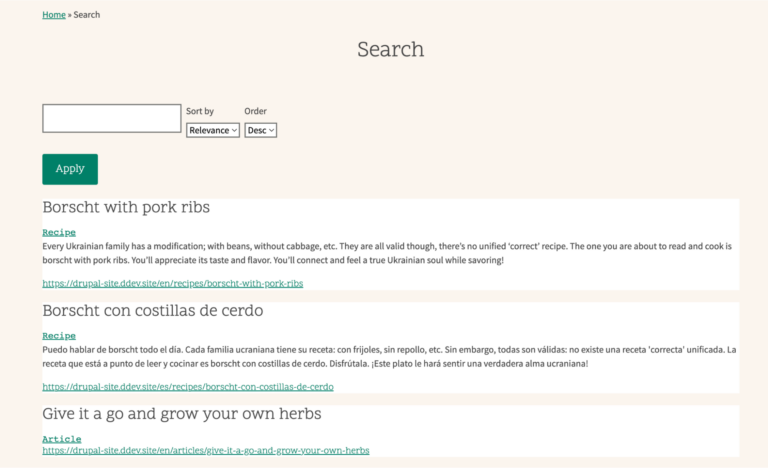
Finally, you can create a search page by leveraging Drupal Views. Create a new view, and select your Index as the data source.
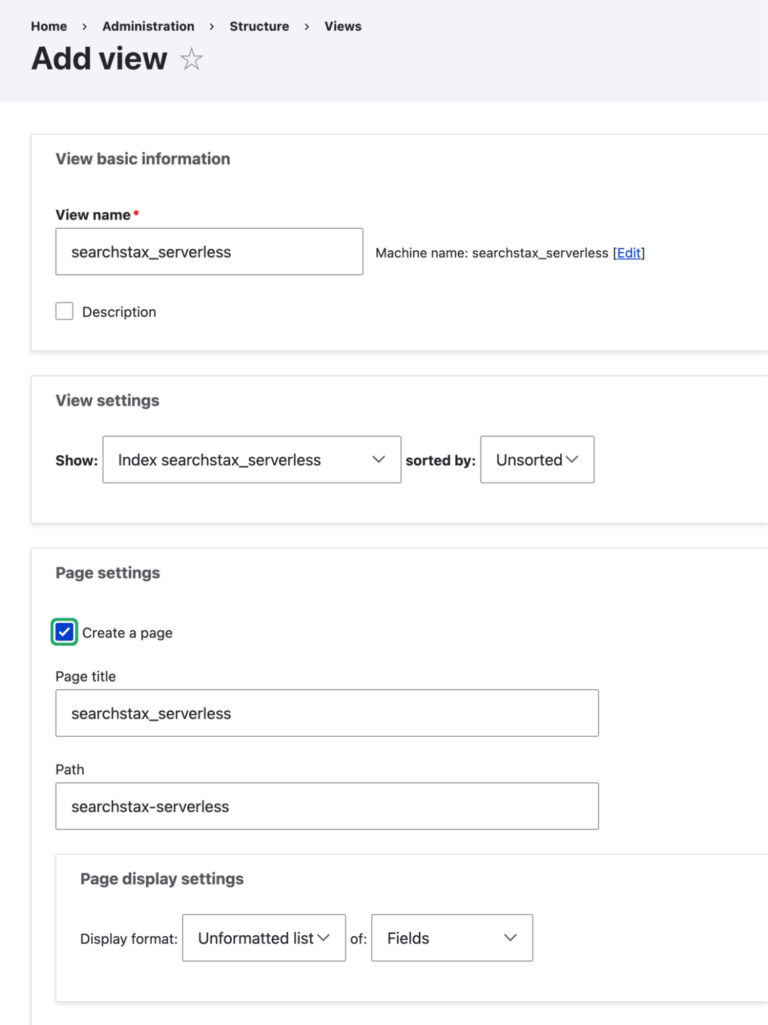
Choose the index you configured in Step 5, and configure the View to display search results as desired. Configure a View as you see fit. Voilà!
Conclusion
By following these steps, you can successfully leverage Solr on Drupal using SearchStax Cloud Serverless. This integration will significantly improve your site’s search capabilities and provide your users with a faster, more accurate search experience. With the flexibility of the SearchStax Cloud Serverless platform, you can easily scale and manage your Solr indexes as your site grows. Try SearchStax Cloud Serverless today.

Get Our Newsletter
The Stack is delivered bi-monthly with industry trends, insights, products and more
Staff Editor